Product
What HireMagic does today
HireMagic does a few things. Here is each one, with the screen you or your candidates will use. Everything on this page is built and working.
Part one
For candidates
What the people applying to you will see: a careers page in your brand, in their language, that works on their phone and that they can find on Google.
01Careers pages
A job board in your brand
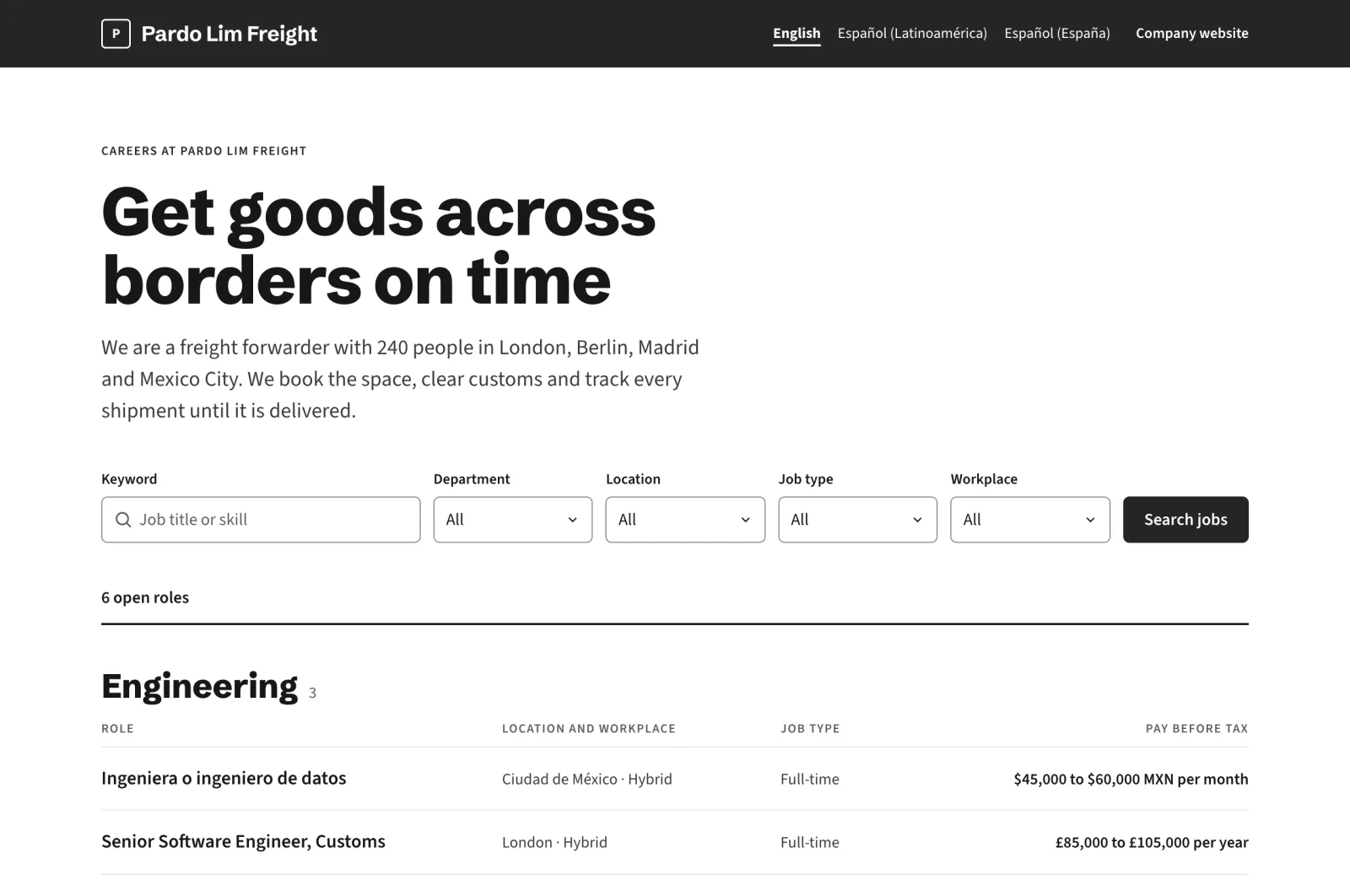
Your logo, your colour and your headline at the top, then every open job grouped by department, with location, job type and pay on each row. Candidates can search by keyword and filter by department, location, job type and workplace.
- Your colour is checked and adjusted so text stays readable (WCAG 2.2 AA)
- A page for every job, with the description set out like an article
- A link to your privacy policy on every page
02Languages
Four languages, each with its own style
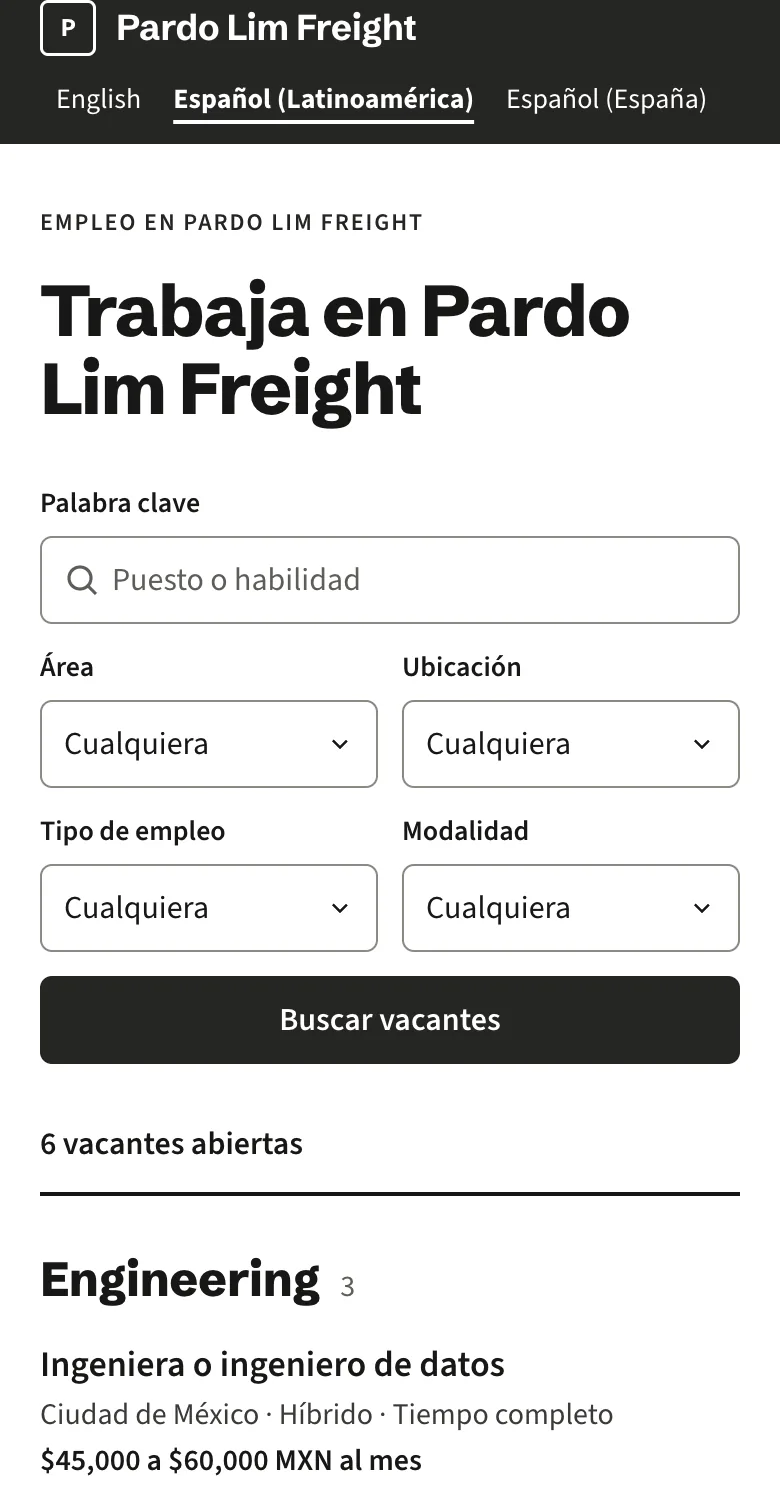
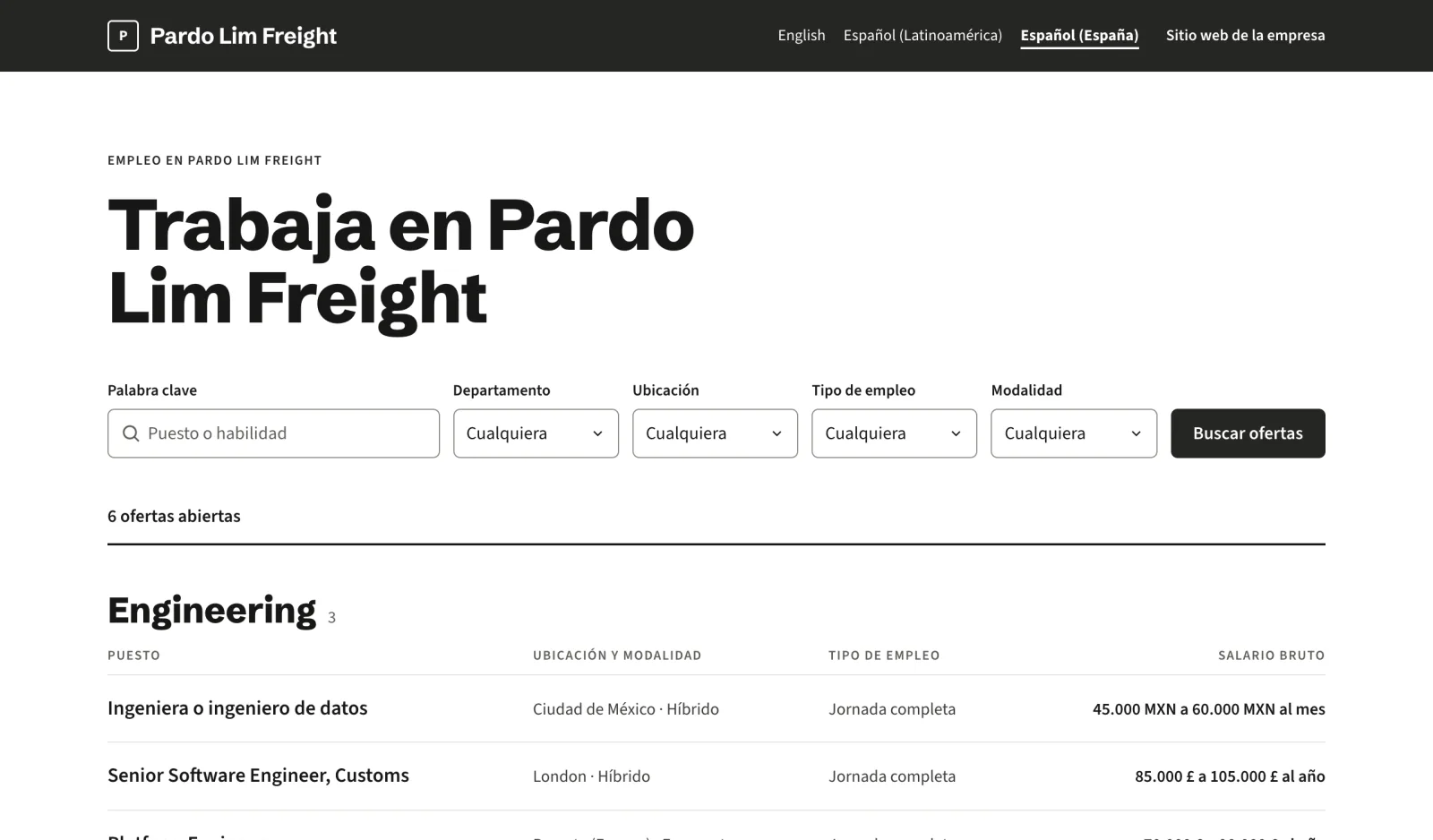
Write each job in English, French, Latin American Spanish or Spain’s Spanish. The wording, dates and number style follow that language, and a switch at the top of the job board lets candidates choose.
- Spain: 28.000 € a 34.000 € al año
- Mexico: $45,000 a $60,000 MXN al mes
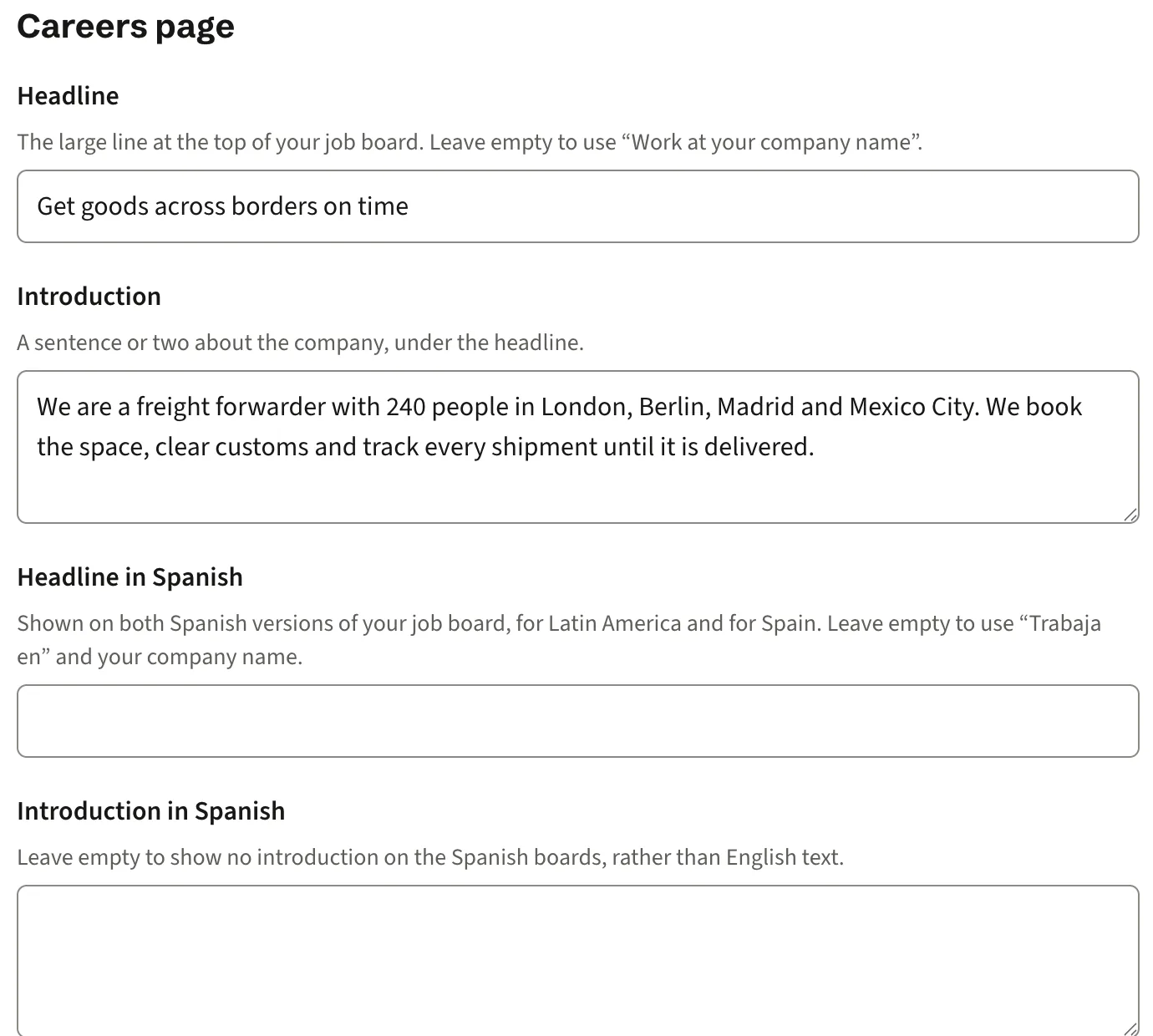
- Your headline and introduction can be written in each language
03Application form
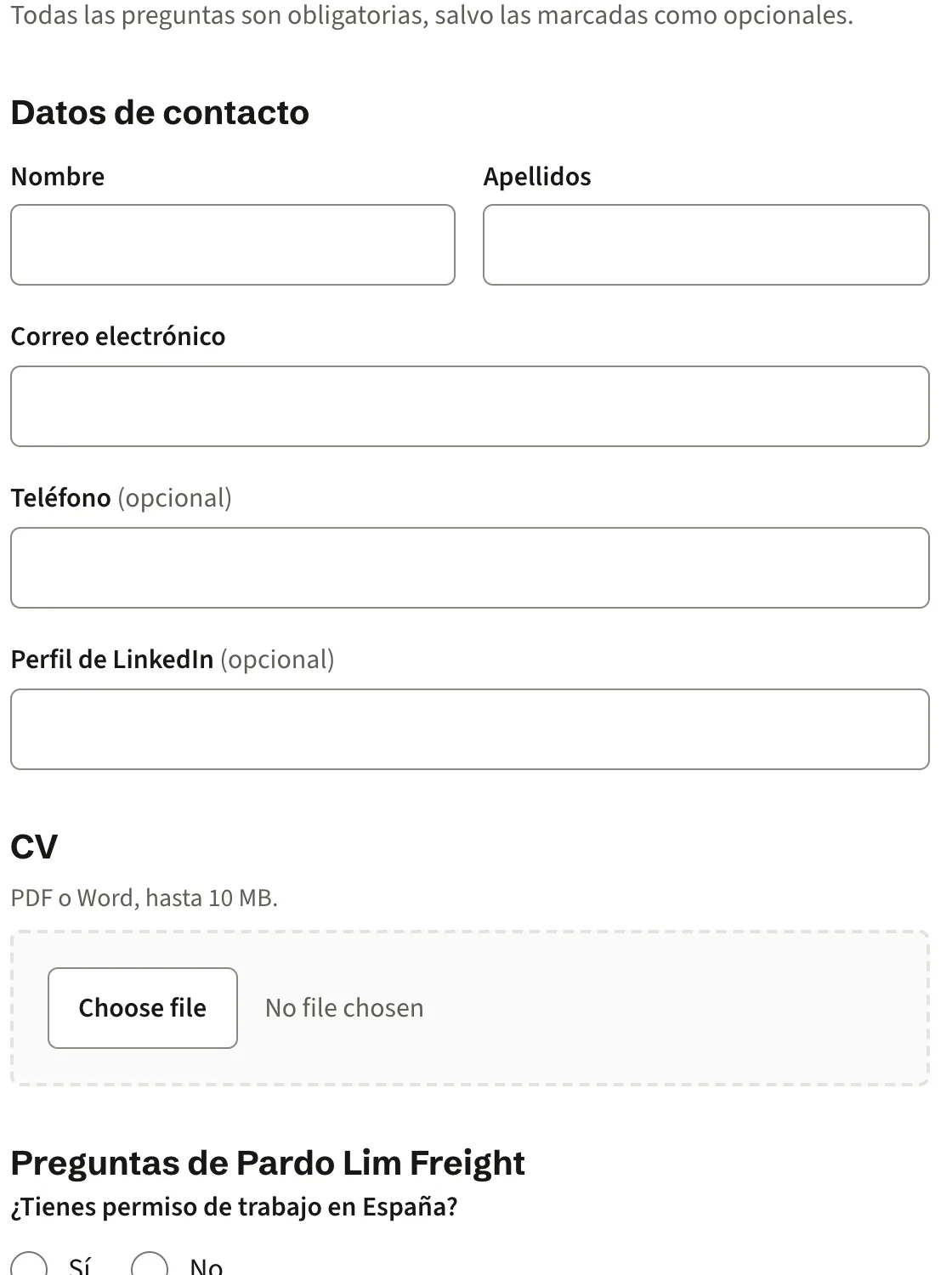
A form that is easy on a phone
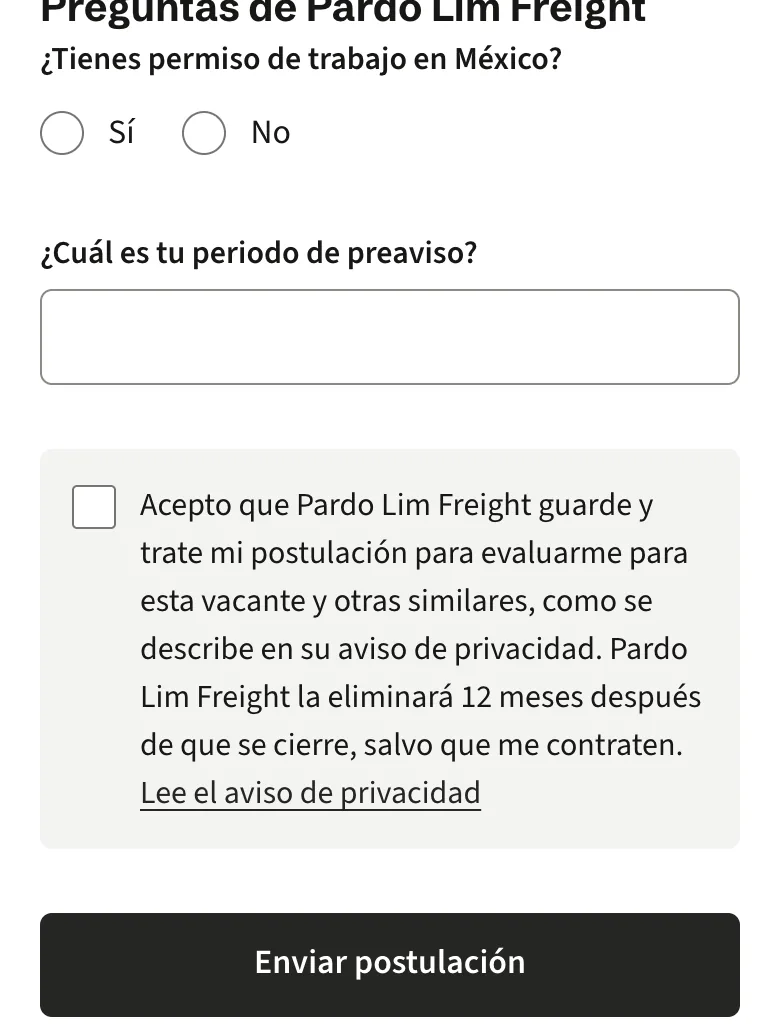
One column, large touch targets and plain questions. Candidates upload a CV as a PDF or Word file and answer the screening questions you write. If something needs fixing, the form says exactly what to do and keeps every answer they gave.
- Questions with yes or no answers, or short text
- Consent wording that states how long you keep the application
- Every field labelled, and usable with a keyboard or screen reader
04Google for Jobs
Found where people search
Every job page carries complete Google for Jobs markup, so your roles can appear in Google’s job search with the details candidates look at first. You do not need to set anything up.
- Job title, company and workplace address
- Job type: full time, part time or contract
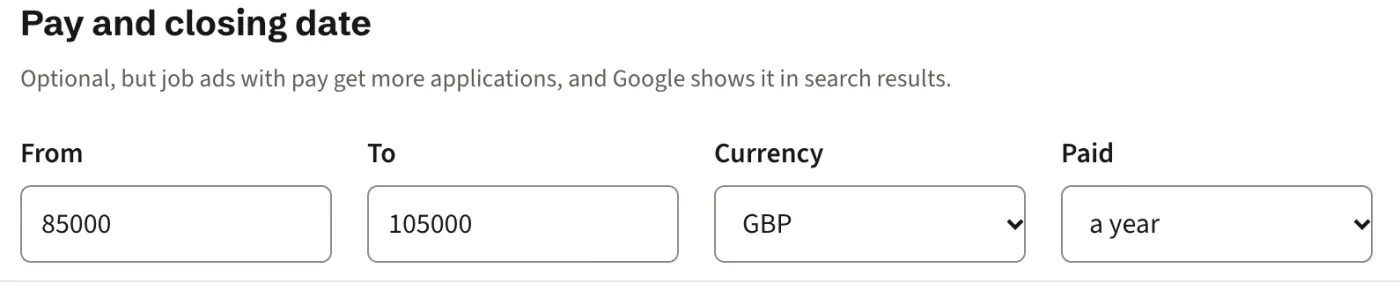
- Pay, with currency and period
- Date posted and closing date
Part two
For your team
What you and your colleagues will use each day: one inbox, a board for each job, and settings you can understand without a manual.
05Inbox
One inbox for every application
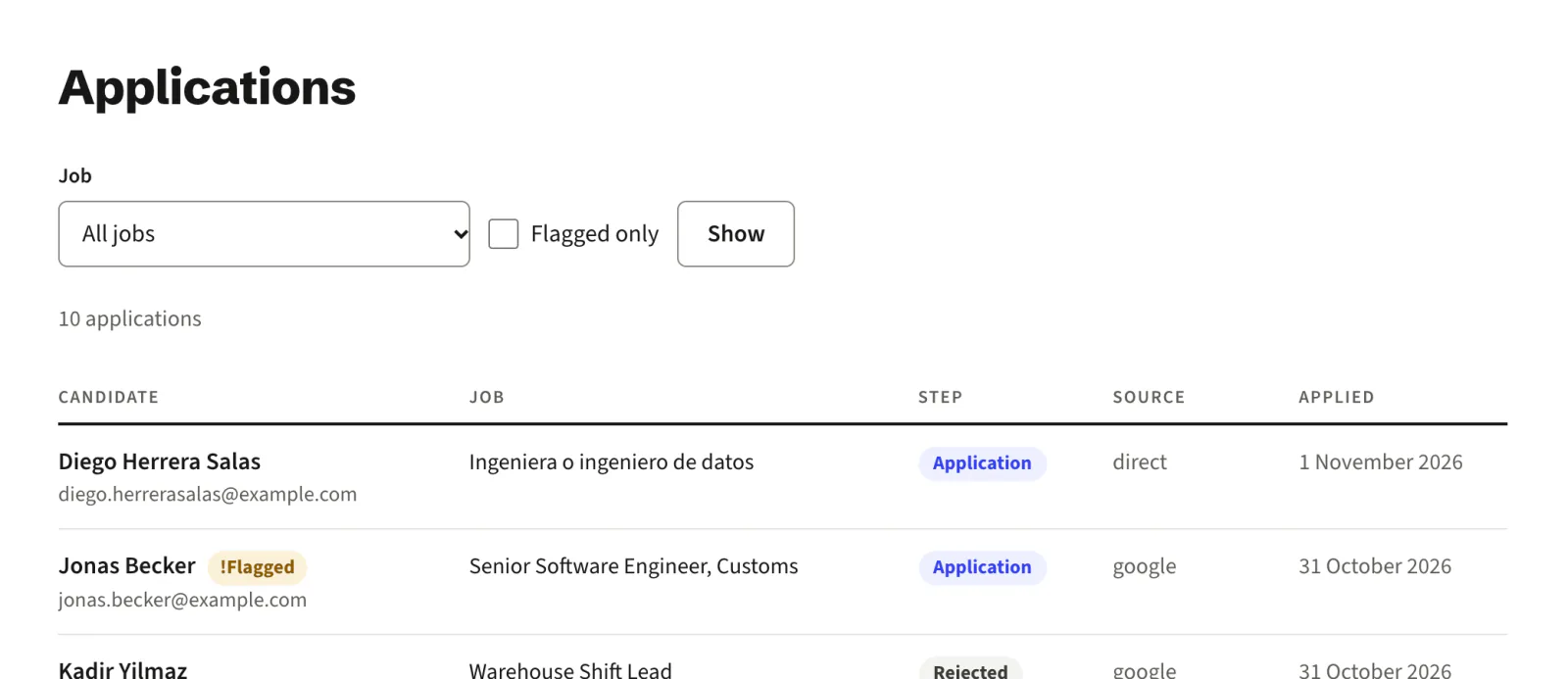
Every application, from every job, in one list with the candidate, job, step and date. Filter by job or show flagged applications only. Open one to see their answers, download their CV and move them on.
- CV downloads limited to people on your team
- Consent shown with the date, time and wording they agreed to
- Delete a candidate’s data on request
06Screening
Flags, never rejections
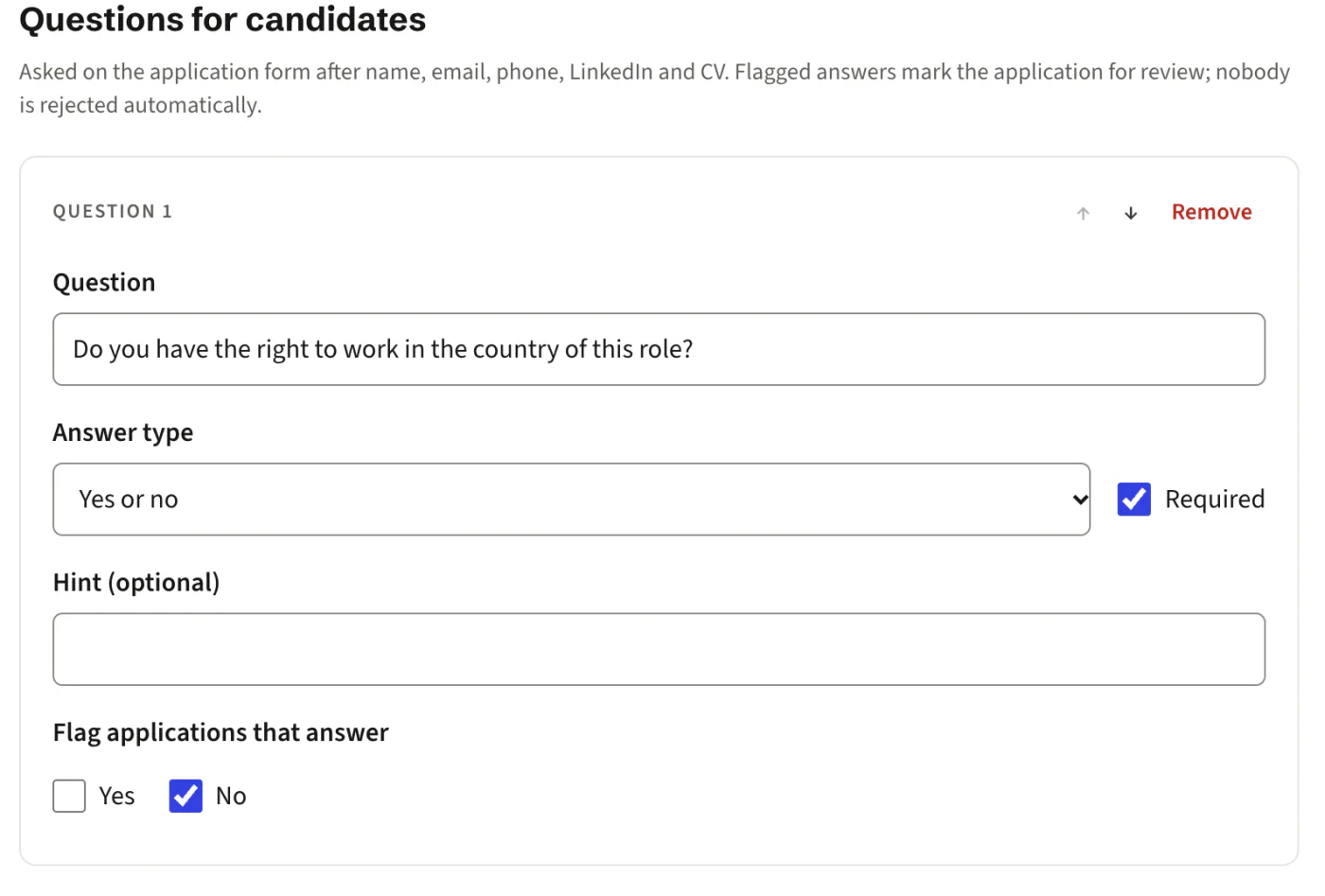
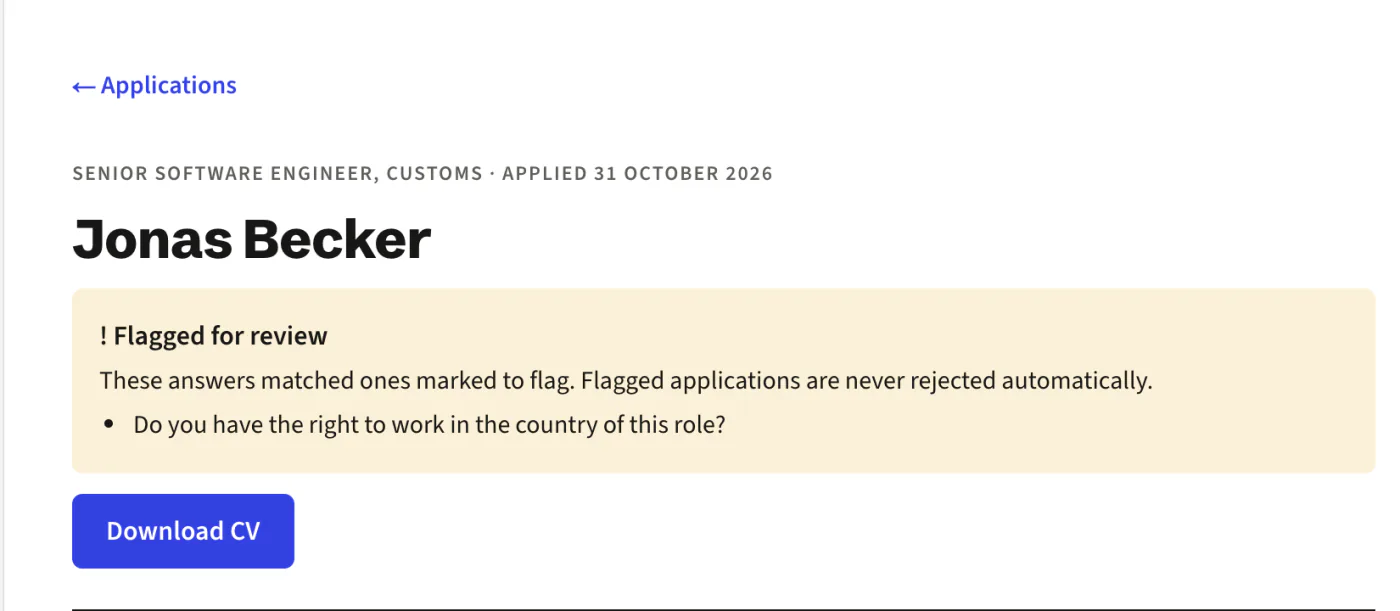
When you write a question, choose which answers should flag an application, such as “No” to the right to work. Flagged applications are marked for a person to review. Nobody is turned away automatically.
- Set flags on each question
- The application shows which answer caused the flag
- You decide what happens next
07Hiring steps and board
Your steps, your words
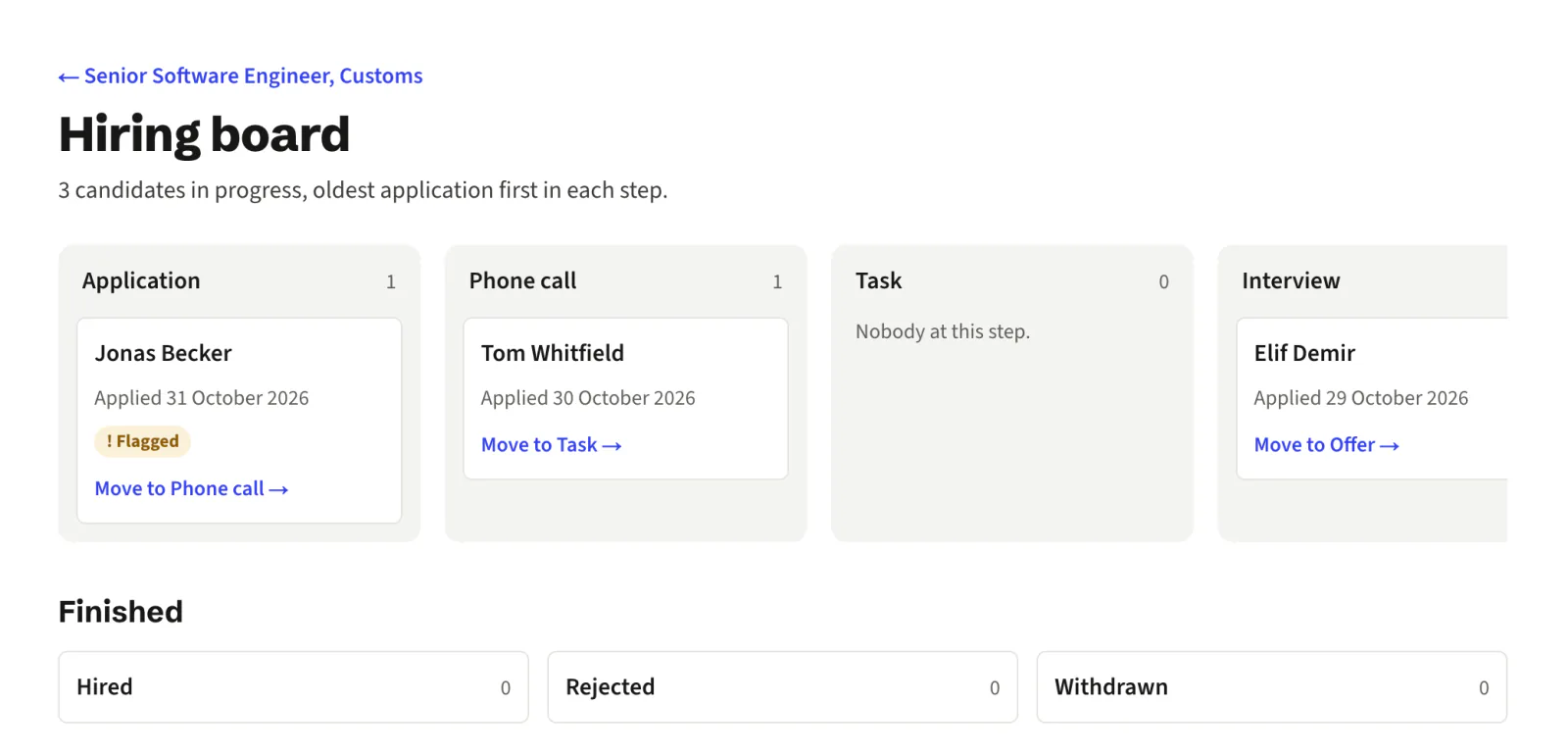
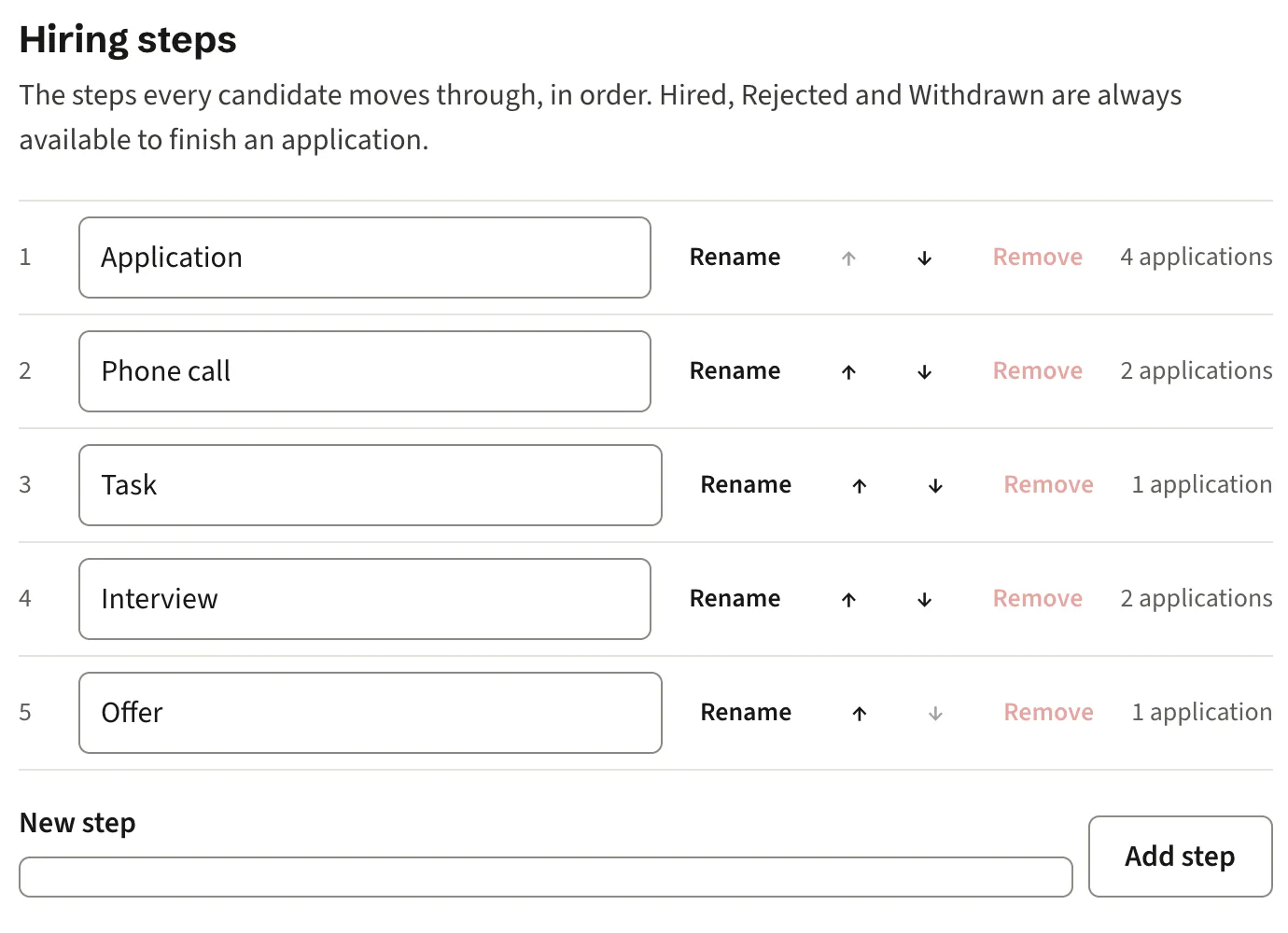
Name your hiring steps the way your team talks about them, such as Phone call, Task and Interview, and put them in your order. Each job gets a board with those steps, oldest application first, and every move is kept in a history.
- Rename, reorder, add and remove steps
- Hired, Rejected and Withdrawn are always there to finish an application
- A history of who moved whom, and when
08Settings and sign-in
Everything on one page
Company details, careers page headline and introduction in each language, logo, colour, retention period, hiring steps and team members, all in one place. Your team signs in with Google, Microsoft or a code sent by email.
- Add colleagues as owners or members
- No passwords to forget or reuse
- Changes to a live job appear on your careers page at once
Roadmap
What comes next
We are building these now, in this order, and tick each one off on the roadmap the day it ships. See the full roadmap
- 1Interview schedulingBuilding now
- 2Offers
See it with your own jobs
Give candidates a careers page they can use in their own language, and give your team one place to see every application.
30 minutes on a video call, with your own jobs.